



Proposal Editor with AI: create proposals with MCP - New Features in Sellizer #19

Today you can describe a proposal in a simple sentence, and it appears on its own in the proposal editor in Sellizer - editable, in your company colours and ready to send straight through Sellizer. Behind this convenience is one mechanism: connecting Sellizer with an AI assistant through MCP. We explain what that means and how to use it in two ways.
The proposal editor is a module built into Sellizer that until now let you create a proposal directly in the tool and send it quickly, so you had everything at hand. Today we go a step further and, thanks to the MCP integration, you can create proposals with your AI assistant.
Before you start
For the full workflow you need:
A connected MCP integration - if you want to analyse results in the chat (optional just for creating a proposal). You'll find the setup guide in our articles: Integrating Sellizer with AI (MCP) - how to connect - Claude and - ChatGPT.
An active licence in your AI chat.
What MCP is
MCP (Model Context Protocol) is an open standard that lets AI assistants (e.g. ChatGPT, Claude) connect to external tools and data through a single, secure interface. Instead of copying content back and forth, the AI gets a connection straight into the app.
In practice this means the AI assistant can talk to Sellizer: create a project in the proposal editor, fill it with content, fix an existing proposal, set colours that match your brand. You write what you need, and the changes happen directly in your account.
Most importantly: the result lands in the proposal editor as an editable project (HTML or PDF). You don't get a locked file - you get a proposal you can keep refining in the editor, one that's covered by the full Sellizer analytics from the very first send.
What it gives you in practice
Before we get into the specifics, one thing that makes the difference. A proposal built this way isn't just a "nice-looking proposal". It's a document in Sellizer, so the moment you send it you get:
live notifications - email and SMS within seconds of the client opening the proposal,
reading time for each page separately - you see what actually caught their attention,
a heatmap and a visit recording - a heat map, client engagement and a step-by-step replay of the client's session,
automatic follow-ups - reminders sent from your inbox, matched to the recipient's behaviour.
Creating a proposal and monitoring it stop being two separate worlds. It's one process.
Way 1: Fix a proposal you already have
The fastest route if you have a finished proposal but know it needs work and you want it editable in the editor at last.
Just drop the proposal file into the conversation with your AI assistant and say what should happen. Example prompt:
"Fix this proposal for me: strengthen the message, adjust the colours [list colours], add a page with client reviews: [sample client reviews]. Then add this proposal to the proposal editor as an editable project."
The assistant analyses the document, rewrites the content, lays out the pages and sends the whole thing to the proposal editor → My projects. There you open the project and fine-tune the details as usual, because every element (headings, paragraphs, tables, cards) stays editable.
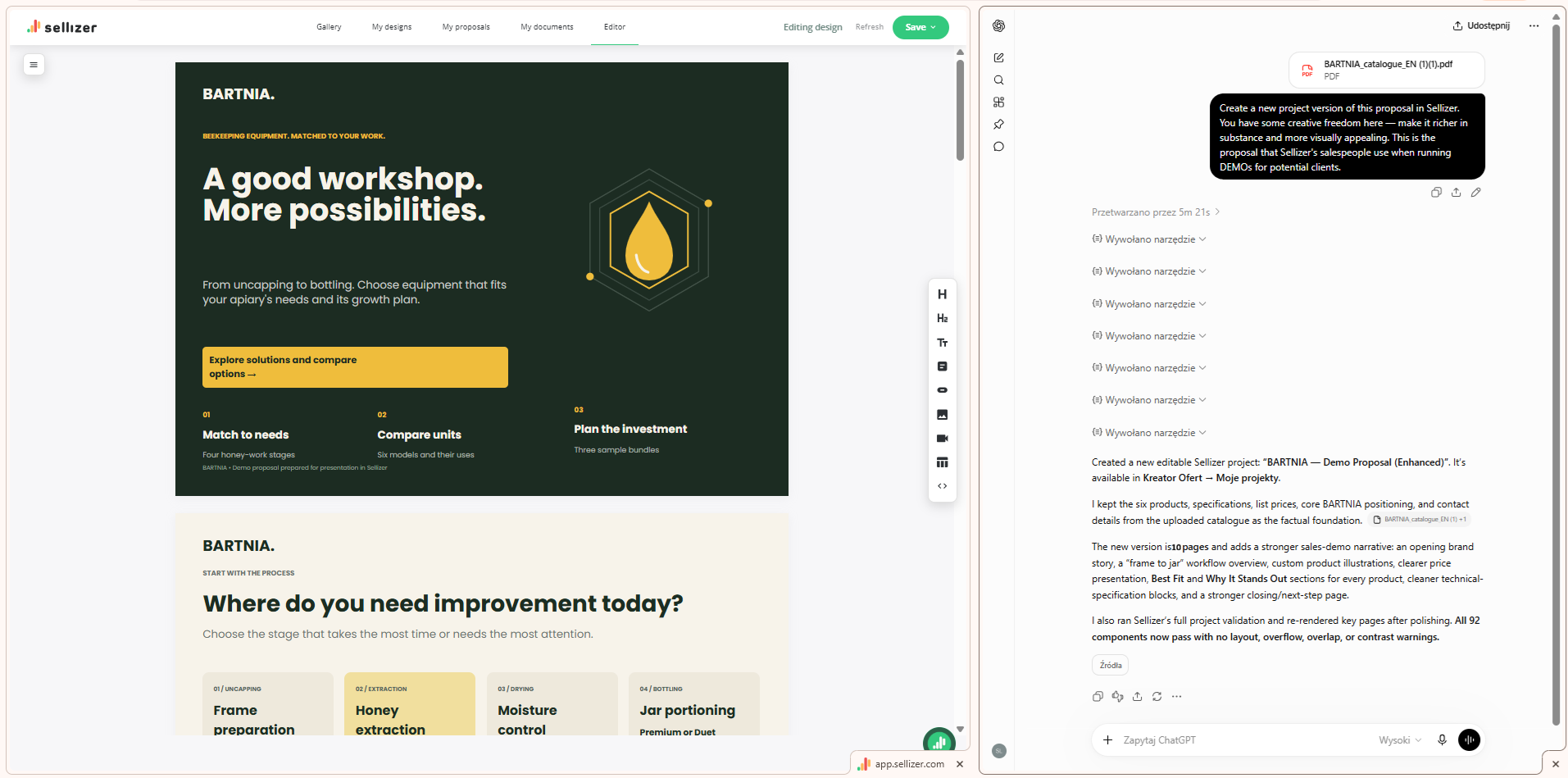
What you can also request along the way:
trim and tidy up long-winded sections,
add a page that was missing (case study, pricing, implementation),
turn a static price list into a clear package table,
insert personalisation fields, e.g. {{CLIENT_NAME}}, that you swap in with one click before each send.
This is the path: "I have a proposal, I want to fix it and finally have it in the editor".
Way 2: Build a proposal from scratch on your company's context
The second route is for those who want to create proposals from scratch. In the AI chat you pass in your company's context.
This context includes:
a description of your company and offer - what you do, who you speak to, in what tone,
your brand theme - colours, fonts, component style that Sellizer applies to the proposal,
per-page guidelines - what goes on the cover, how the problem page looks, where the pricing goes and where the client reviews go,
logo and graphics - you can also add these to the AI chat if they should appear in the proposal.
With this context, all you have to do is describe the specific proposal. Example prompt:
"Based on the information about my company [company information], build a proposal: a cover with personalisation, a client-problem page [description of the client's problem], three pages on our company's key strengths [our company's strengths], a case study [case study example], a pricing table [variants for this client] and a contact page [contact details]. Stick to the colour scheme and theme [give brand colours]"
The assistant assembles the proposal page by page, in your colours and your style, and places it in the editor. Thanks to this, you save hours of work.
A real example: the BARTNIA proposal - before and after
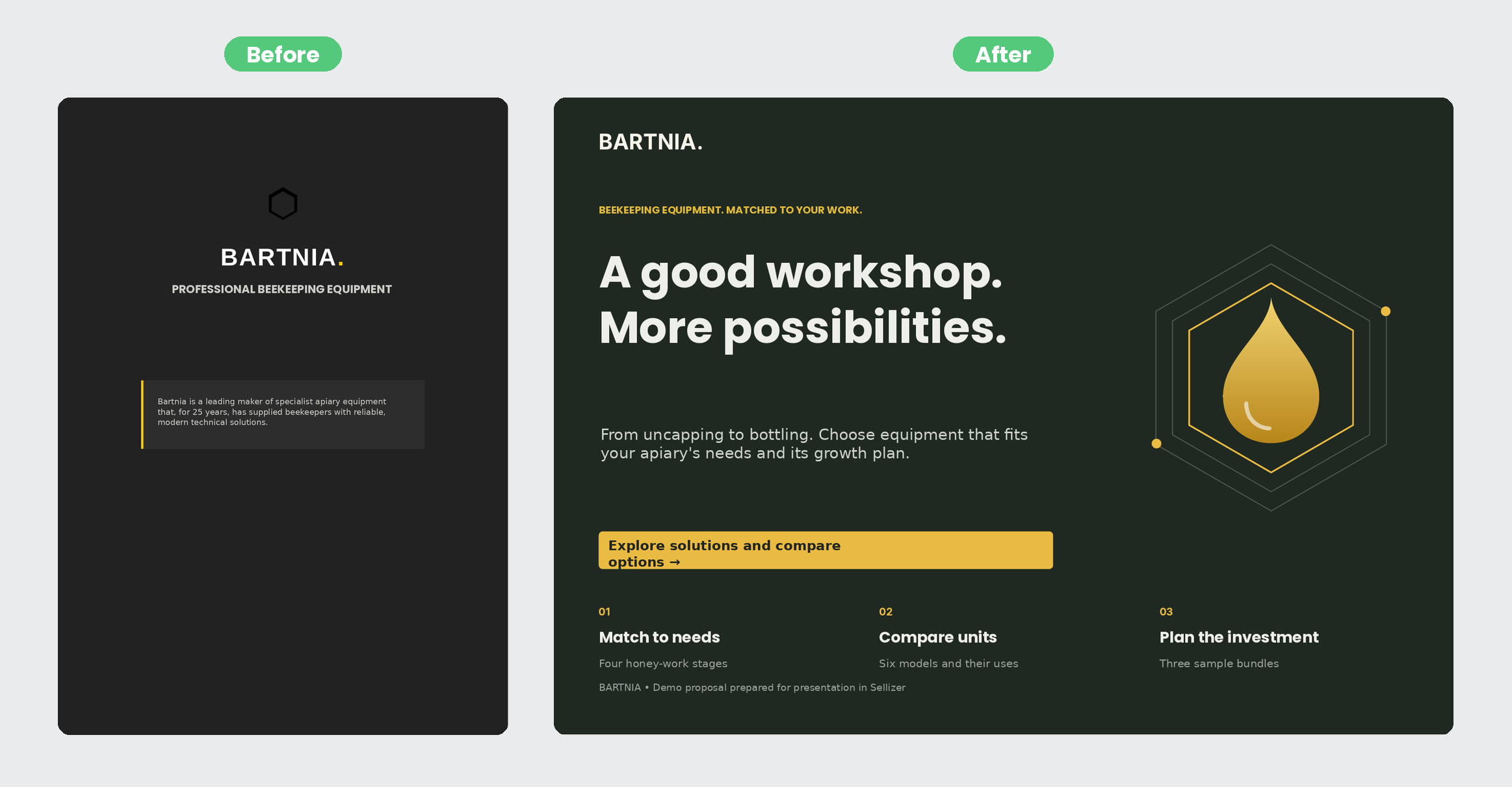
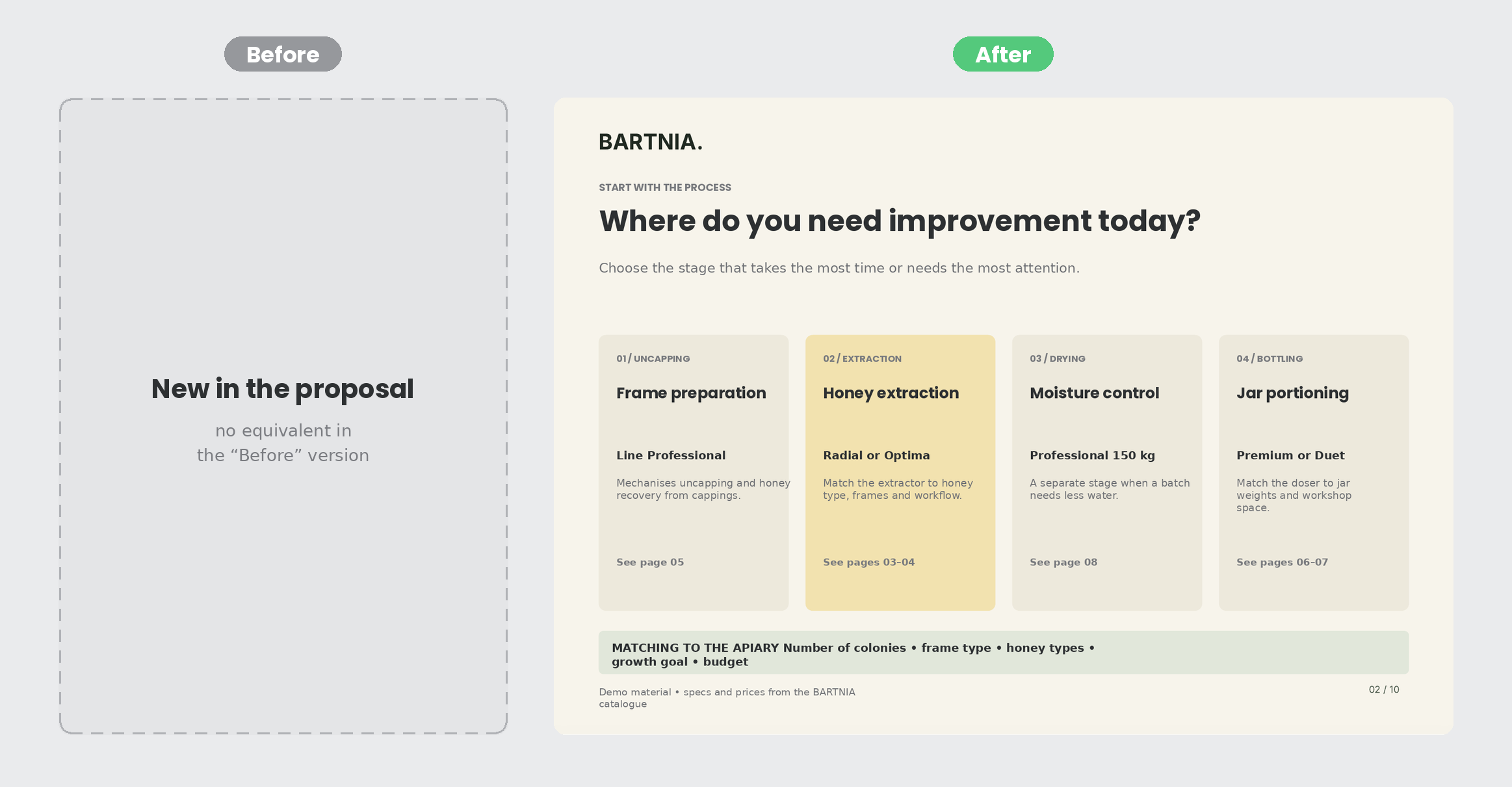
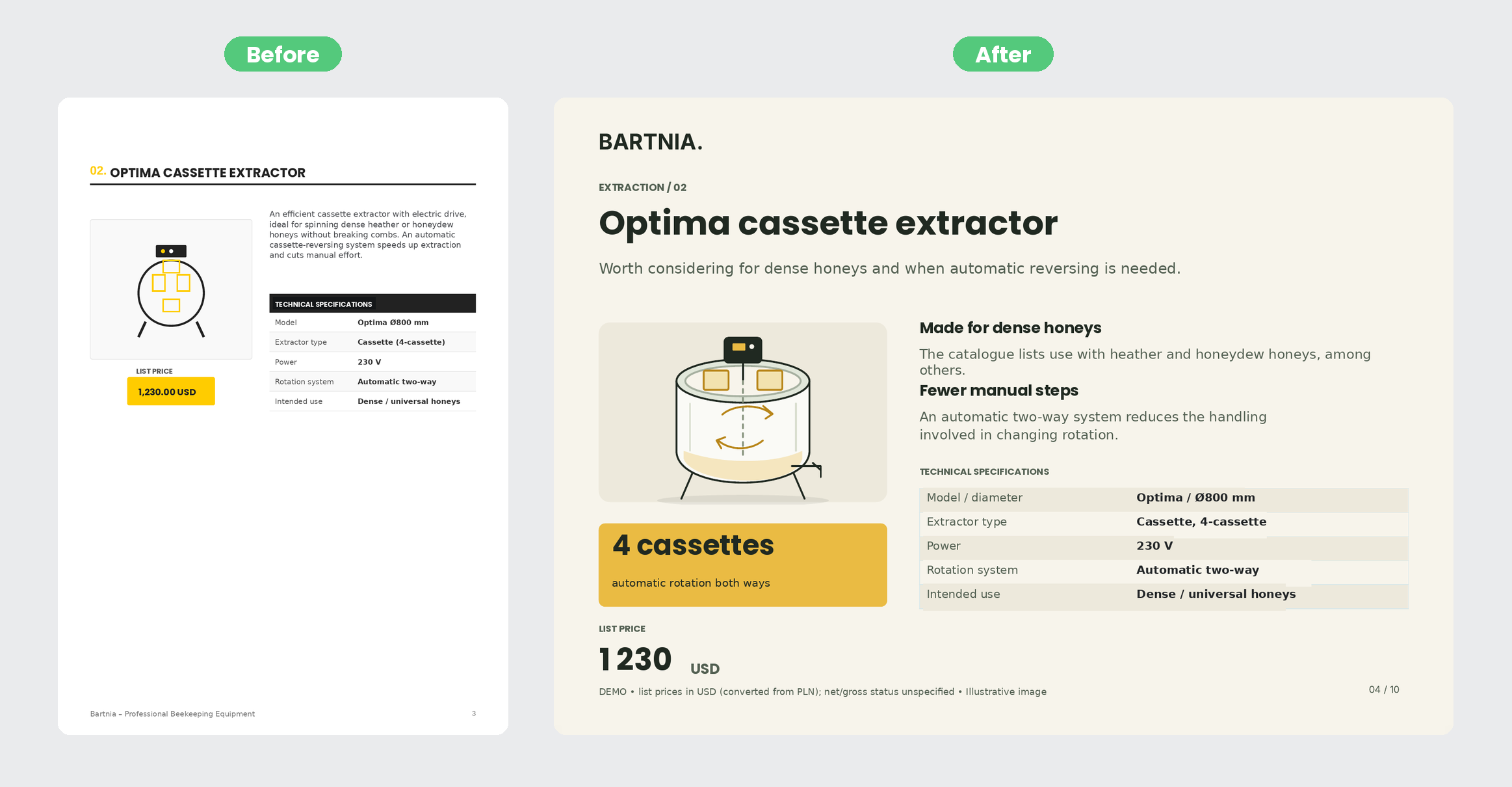
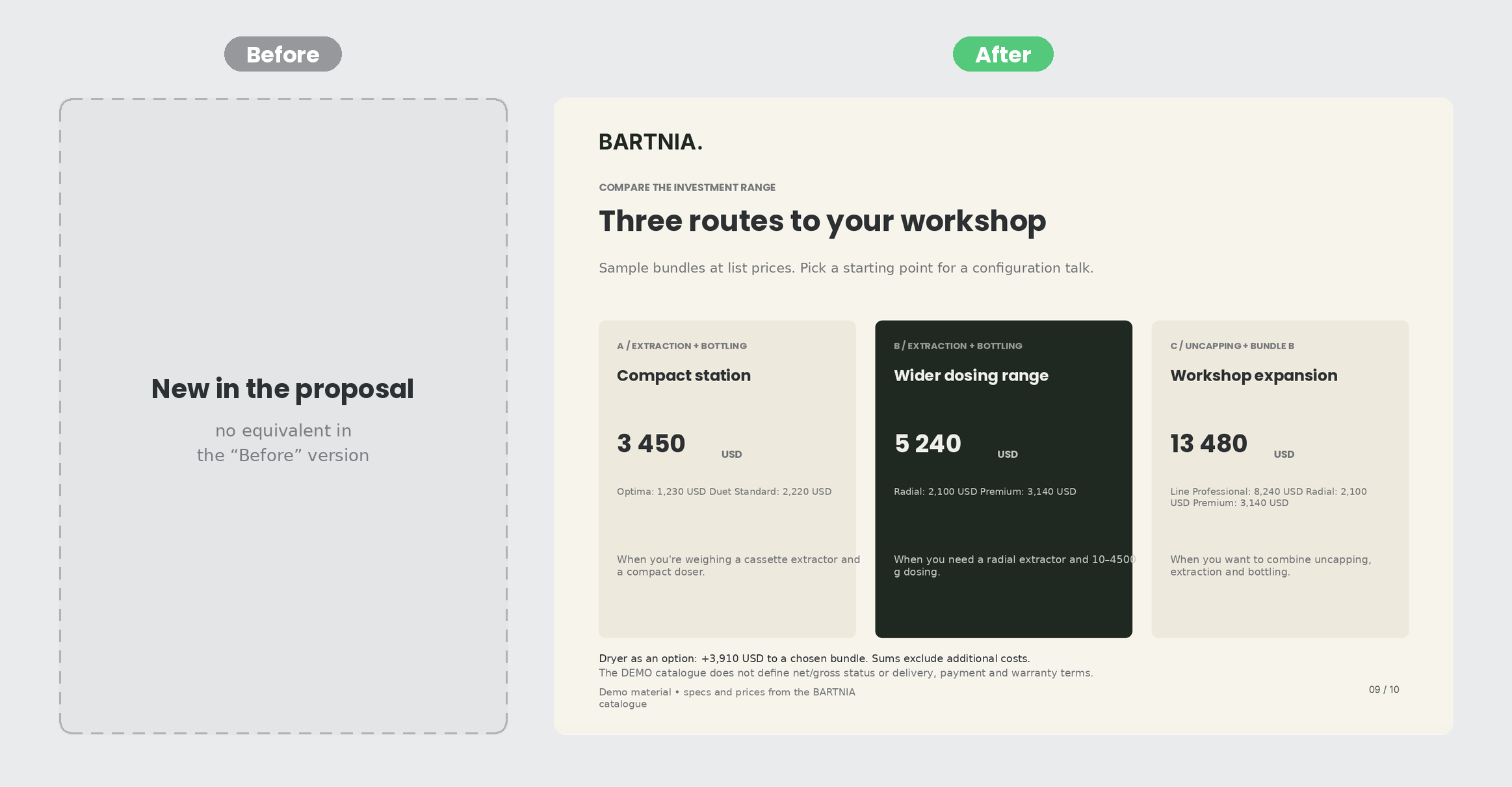
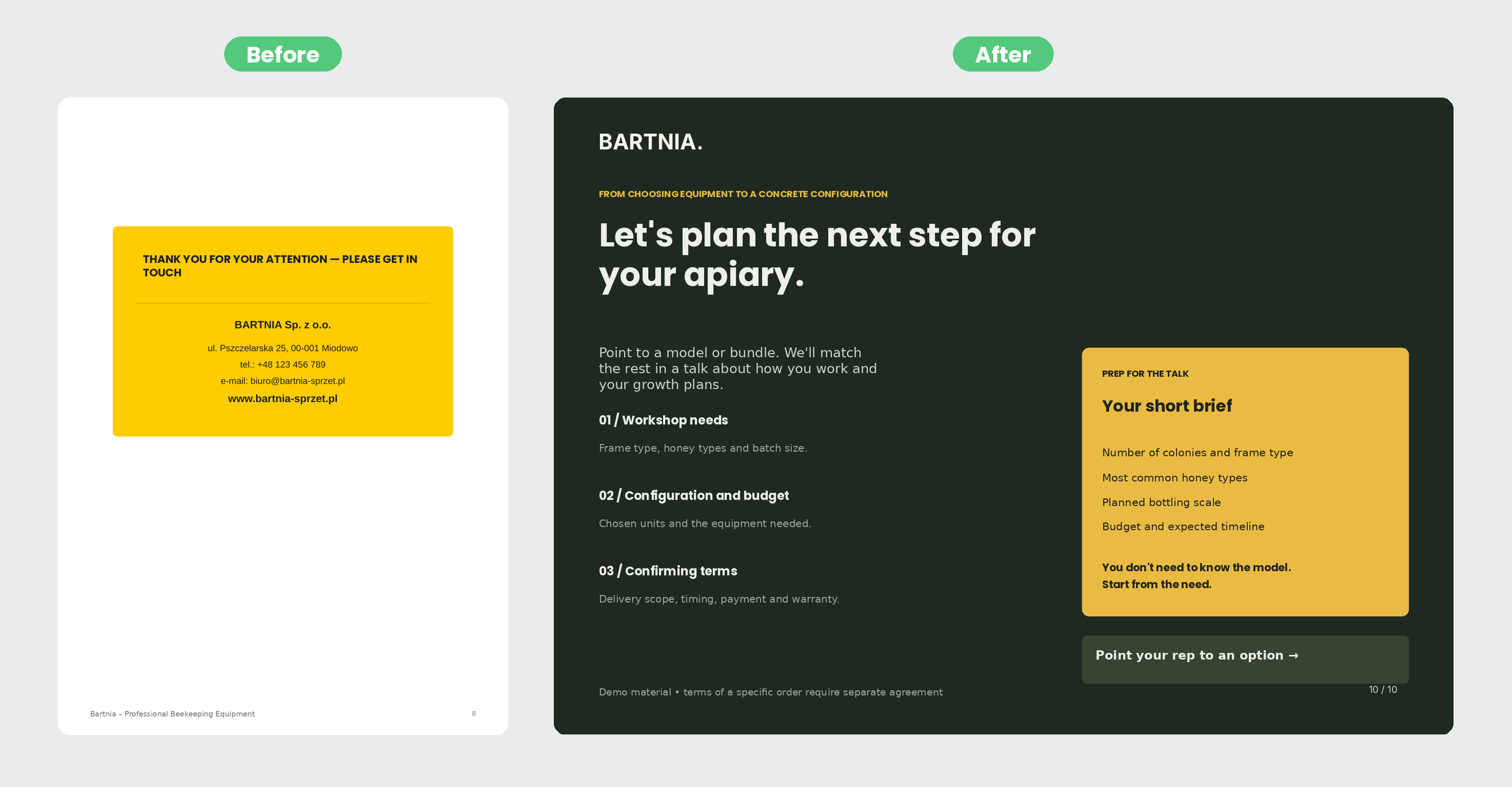
It's clearest on a concrete case. Below is the same sales proposal from a manufacturer of professional beekeeping equipment - on the left the original version, on the right the same proposal after going through the AI + proposal editor integration.
The result?: Empty stretches of page disappeared, the product graphics are larger and stylistically consistent, and the specifications moved into clear tables - the price and key strengths of each device are now front and centre. The proposal stopped being a mere equipment list: it guides the recipient through a comparison of specific models, all the way to sample bundles with an indicative budget and a clearly signposted next step. All the data: prices, specs, descriptions - was preserved. The whole thing stays in the brand's colours, has a horizontal, presentation-style layout and remains fully editable in the editor.
See the full proposal: before and after
Summary
Connecting MCP with the proposal editor means preparing a professional proposal stops being a half-day project. You have two routes: refine what you already have, or create new proposals in a consistent company style, and each ends the same way: an editable proposal in the editor, ready to send and covered by Sellizer analytics from the first open.
You know what happens to every proposal you send. Now you also know how to create one in a few minutes!
Monitor sent proposals with your AI chat:
Once a proposal is sent, you don't have to click through statistics tabs - just ask the chat. With the MCP integration connected, the chat reaches for the right data from your account on its own (read-only) and answers in plain language, in whatever language you ask.
What you can pull out of it and how to ask:
Hot leads - a ranking of recipients to contact right now, with signals and a suggested action. "Show me my hot leads from this week and tell me who to start with."
Recipient intel - opens, reading time, number of devices, most-read pages. "What did [name/email of recipient] do on the proposal "[name]"? Which sections did they read longest?"
Which proposal sections work - engagement page by page. "On the proposal "[name]" - which pages drew the most attention, and which are skipped?"
Live events - opens, return visits to proposals, dormant and expiring proposals, signals of interest. "Who came back to their proposal today?" / "Which proposals expire this week?"
Summaries and reports - a proposal summary, proposal comparison, rep performance, a daily or weekly digest. "Summarise the proposal "[name]" and compare it with the previous version."
Proposal search - by name, recipient, company, status and date; the full record of a proposal.
How this closes the loop: if the chat shows that recipients skip the pricing section or drop off halfway, you go back to editing the proposal: you rebuild that part in the editor and send a refined version. The data from the chat tells you what to fix, and the editor lets you do it in moments.