



Proposal analytics: see how clients read your proposals
Sellizer records what each recipient does with your proposal: when they open it, how long they spend on each page and whether they download, print or forward it, so you know who is interested and when to call.
Proposal analytics is the data on what a client does with your proposal after you send it. Sellizer collects it for every recipient separately, so you can see whether the proposal was read, how many people opened it and which pages held their attention.
What Sellizer records for every proposal
how long the recipient viewed the proposal
which pages they read carefully and which they skipped
time spent on each page
whether the proposal was downloaded or printed, and how many times
whether it was forwarded and how many people viewed it
clicks on "request a callback" and "request a contract" (you get an email for each)
for each view: location, IP address, device, screen resolution and browser
The statistics refresh every 5 seconds, so you can follow them while you discuss the proposal with the client. Opening the email and opening the proposal are recorded separately: a green envelope in the status column means the email was opened, and the proposal status tells you whether the proposal itself was.
Heatmap and session replay
Page statistics show how long a client spent on each page, and the heatmap shows where on the page they lingered. Colors laid over the document get warmer where the mouse stayed longer, so you can tell whether they studied the pricing table or scrolled past the company history. It also shows whether they clicked the links in your proposal, for example to a calendar or your website.
Session replay plays the visit back step by step: the pages in the order the client opened them, with every scroll and click. Both features also work on older proposals, as long as the client opens them after the features were launched.
More about heatmap and session replay
PRIORITY and ENGAGEMENT: whom to call first
Each proposal gets two indicators on a 0-100 scale. PRIORITY shows who is active right now. It rises when the recipient opens and reads the proposal and drops every night without activity, to roughly half after a week of silence. ENGAGEMENT remembers the highest interest a recipient has shown and never drops, so a client who was close to a decision a month ago stays visible.
Both indicators count what the recipient does with the proposal: "request a callback" and "request a contract" clicks, downloads and prints, an open soon after sending, time spent and most pages viewed, opens from several devices, a return after a long silence and a few repeat opens. An email open picked up by a tracking pixel counts for little, because email bots often trigger it. You see both indicators in the proposal list, on each proposal's statistics page and in contact and company details.
How PRIORITY and ENGAGEMENT work
Notifications when a client opens the proposal
When the client opens the proposal for the first time, you get a text message with the recipient's email address and phone number, the proposal title, the send date and a link to the statistics. An email notification comes on the first open and on every open after it. You choose which notifications you get in Settings, under Notifications.
Proposal analytics for the whole team
With administrator rights you see the statistics of your team's proposals next to your own. The Reports tab summarizes results for each salesperson and the whole team for the period you pick:
Sent and Opened: proposals sent and opened in the period
Effectiveness: the share of sent proposals that were opened
Attention rate: pages viewed out of all pages of the proposals sent
Average attention time: how long a single proposal was viewed on average
Printed: how many proposals were printed
The reports also arrive by email: weekly, monthly, quarterly, every six months or yearly. In the proposal list you can sort proposals by the time recipients spent on them and filter by proposal name, sender, send date, rating and viewing time.
How sales teams use proposal analytics
Call while the client is reading. A notification or a high PRIORITY means the proposal is open on the client's screen now, so it is a good time to call.
Start with what they read. If the client spent a long time on the pricing but did not book a meeting, suggest a time and talk about the price. You do not have to ask whether they had a chance to look at the proposal.
Find out who else decides. Opens from several devices or a forwarded proposal mean more people are reading it. Ask who should join the next call.
Fix the pages nobody reads. When the statistics and heatmaps show that clients skip the same section, shorten it or move it further back, and build the next proposals around the parts that hold attention.
Go back to clients who went quiet. A high ENGAGEMENT with a low PRIORITY marks a client who was interested but stopped reading, so it is worth following up.
What proposal analytics will not tell you
The statistics show what the client did with the proposal, but you learn the reasons only when you talk to them. A long time on the pricing page can mean interest or doubt.
Proposal analytics FAQ
What is proposal analytics?
Data on what a recipient does with a proposal after it is sent: when they open it, how long they read each page, what they download, print or forward, and how many people view it. In Sellizer it also includes a heatmap, session replay and the PRIORITY and ENGAGEMENT indicators.
How is proposal analytics different from email tracking?
Email tracking tells you that an email was opened, usually through a tracking pixel, which email bots can trigger too. Proposal analytics records what happens inside the proposal: pages, time, downloads and the people who view it. Sellizer records both and shows them separately.
How quickly do the statistics update?
Every 5 seconds, so you can follow them while you discuss the proposal with the client.
Which files can I track?
PDF, DOC, DOCX, XLS, XLSX, PPT, PPTX, PNG, JPG, MP4 and HTML. One proposal can hold several files.
Can a manager see the analytics of the whole team?
Yes, with administrator rights: the statistics of the team's proposals in the proposal list and the team reports in the Reports tab, which also arrive by email.
Do the heatmap and session replay work on proposals sent earlier?
Yes, if the client opens the proposal after the features were launched. Visits from before the launch cannot be replayed.
More about proposal analytics
Related features
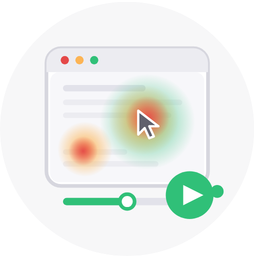
Your proposal stats already tell you a client spent a good while on a given page. But they don't tell you what exactly they were looking at. That changes now - two new features show you precisely what happened within each page after you sent the proposal.

So many contacts, so little time! If only you could tell the promising ones from those barely interested - and on top of that, know who's worth coming back to after a longer silence. You actually can. Each of your proposals gets two indicators on a 0-100 scale that together give you the full picture of what's happening with the recipient.
The client isn't responding? Nothing new, but you wonder if they even opened your email. You've probably already used tools that notify you about opens - you can find them in your email client or as external plugins. However, you've noticed that their accuracy isn't entirely reliable. We have a better solution.
5...4...3...2...1... New data! Statistics are knowledge worth its weight in gold, because every piece of information increases the chance of a sale and profit. We know that up-to-date data is the most valuable, which is why we refresh it for you in real time with incredible frequency – every 5 seconds!

Wondering if the Client had time to review your proposal, or maybe they did it right after you sent it and have already forgotten? Now you don't have to guess!